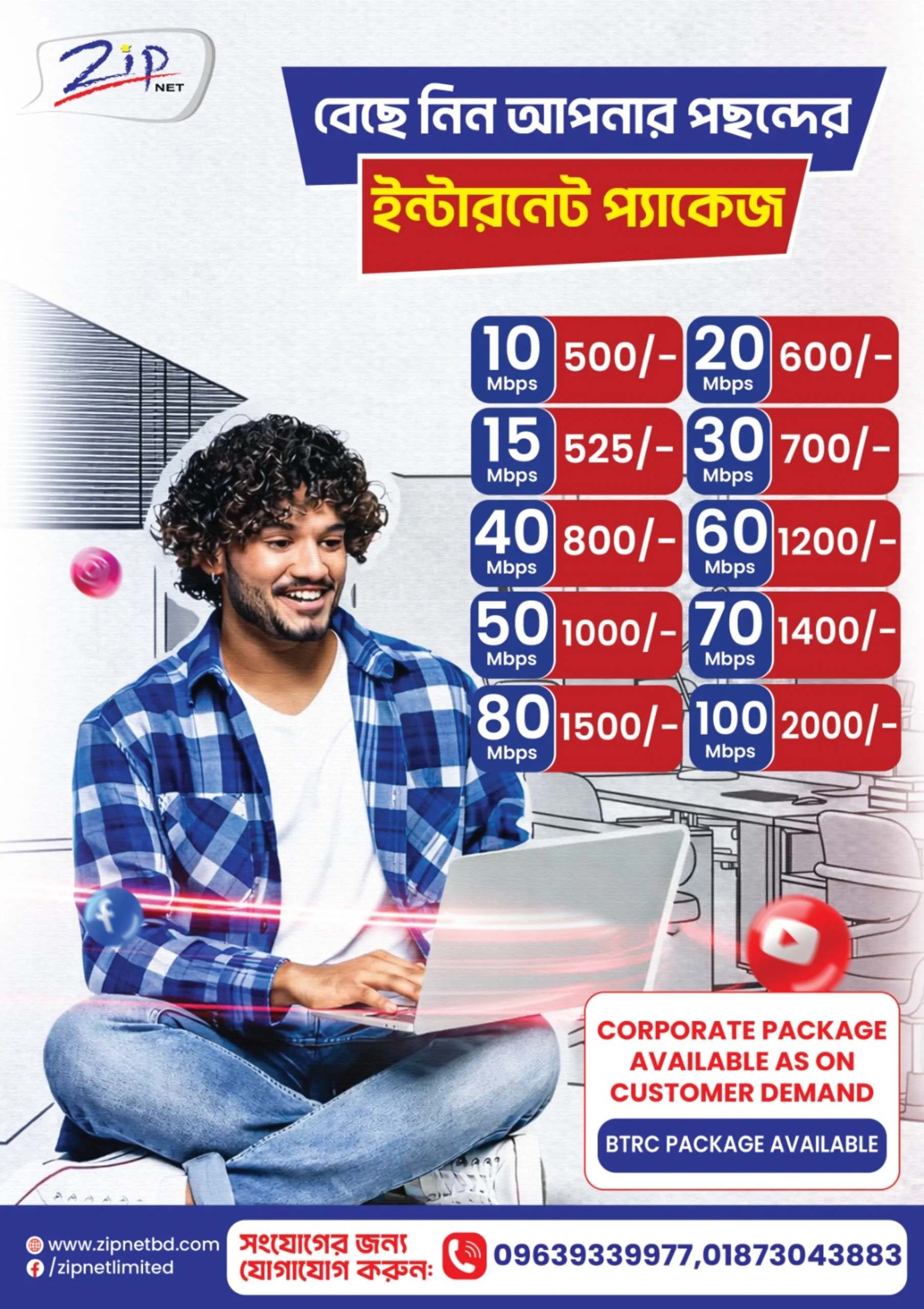
Pay Your Internet Bill in 8 Easy Steps
Follow along with real screenshots — from opening the app to confirming your payment.
Choose your payment method
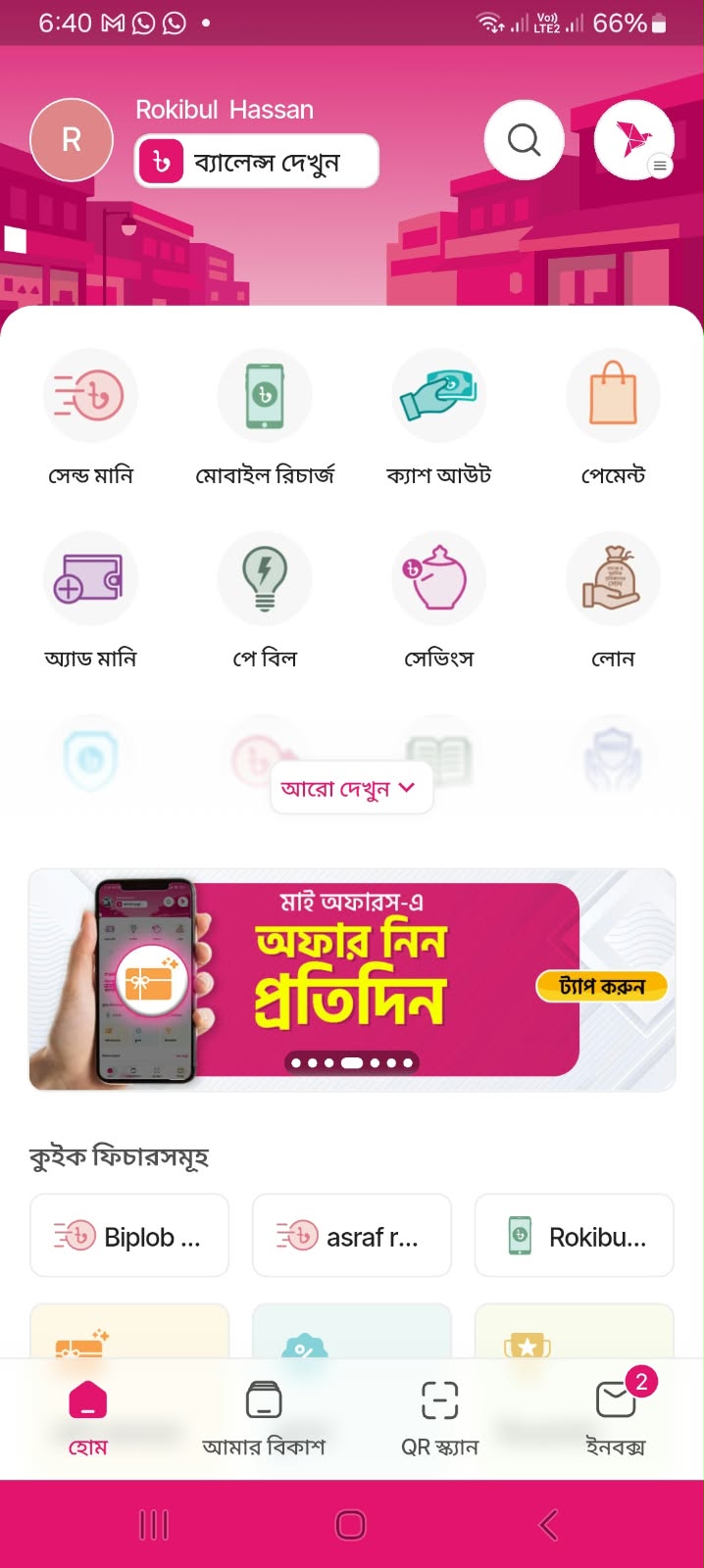
Open bKash & Tap "পে বিল"
Log into your bKash app from the home screen and select পে বিল (Pay Bill) from the main menu.
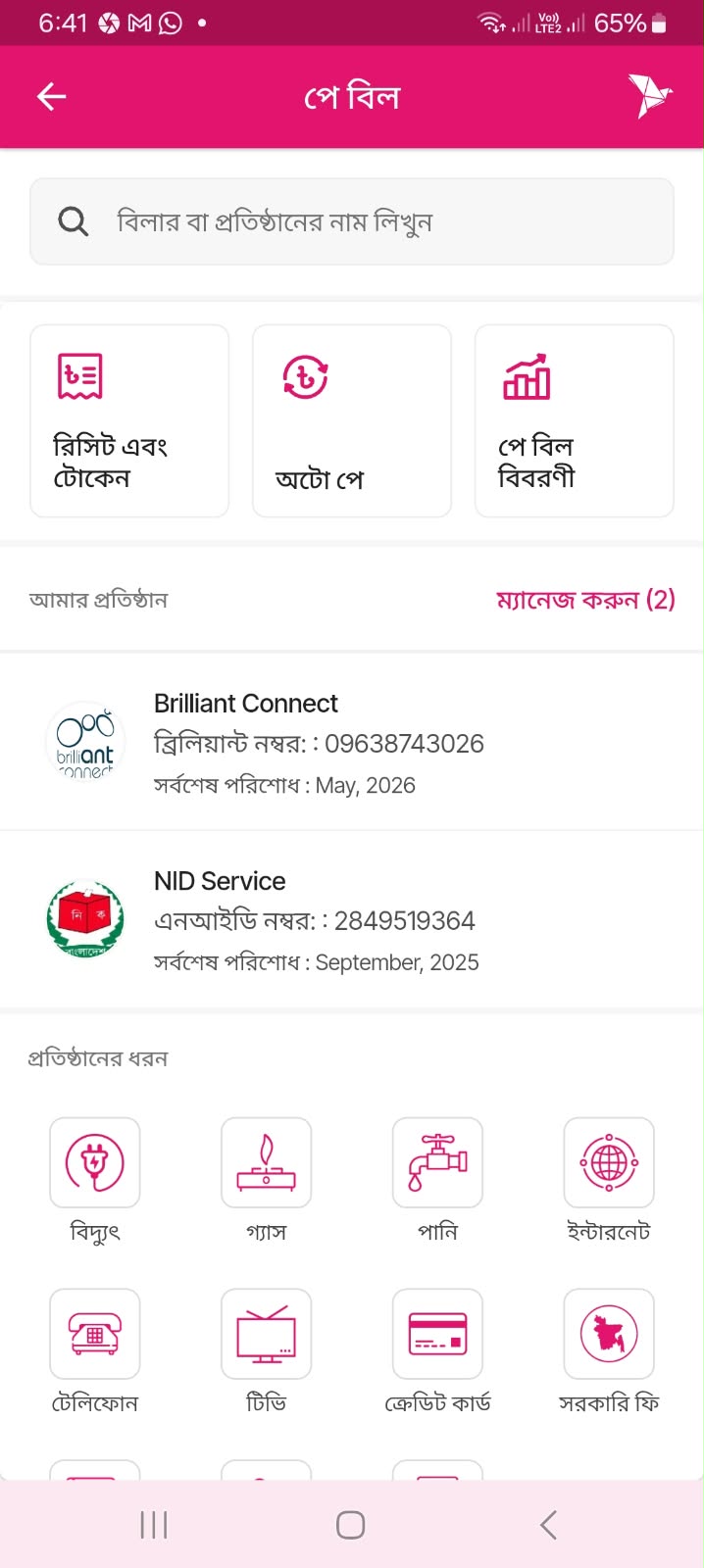
Select "ইন্টারনেট" Category
On the Pay Bill page, choose the ইন্টারনেট (Internet) category, or simply search for your provider directly.
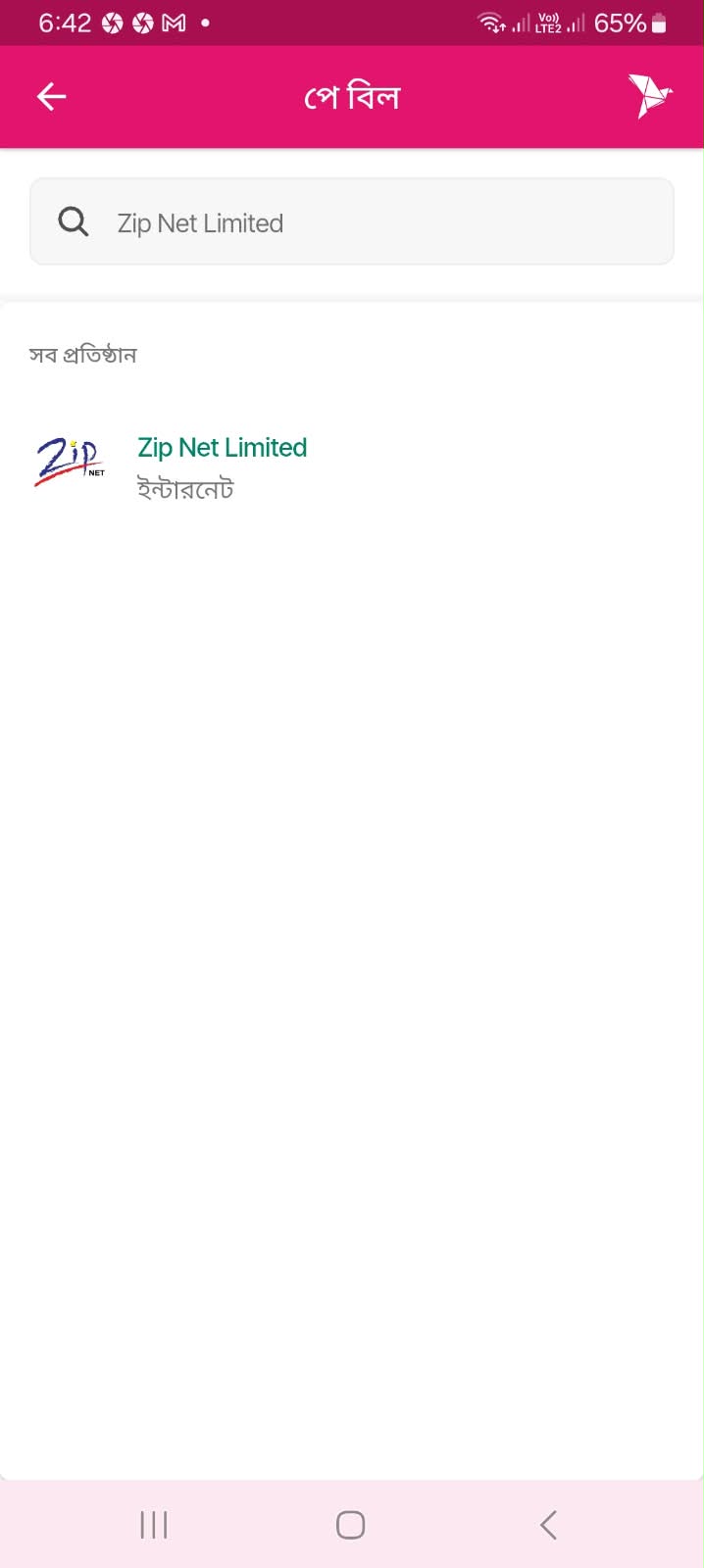
Search & Select "Zip Net Limited"
Type Zip Net Limited in the search box and tap on it from the results list.
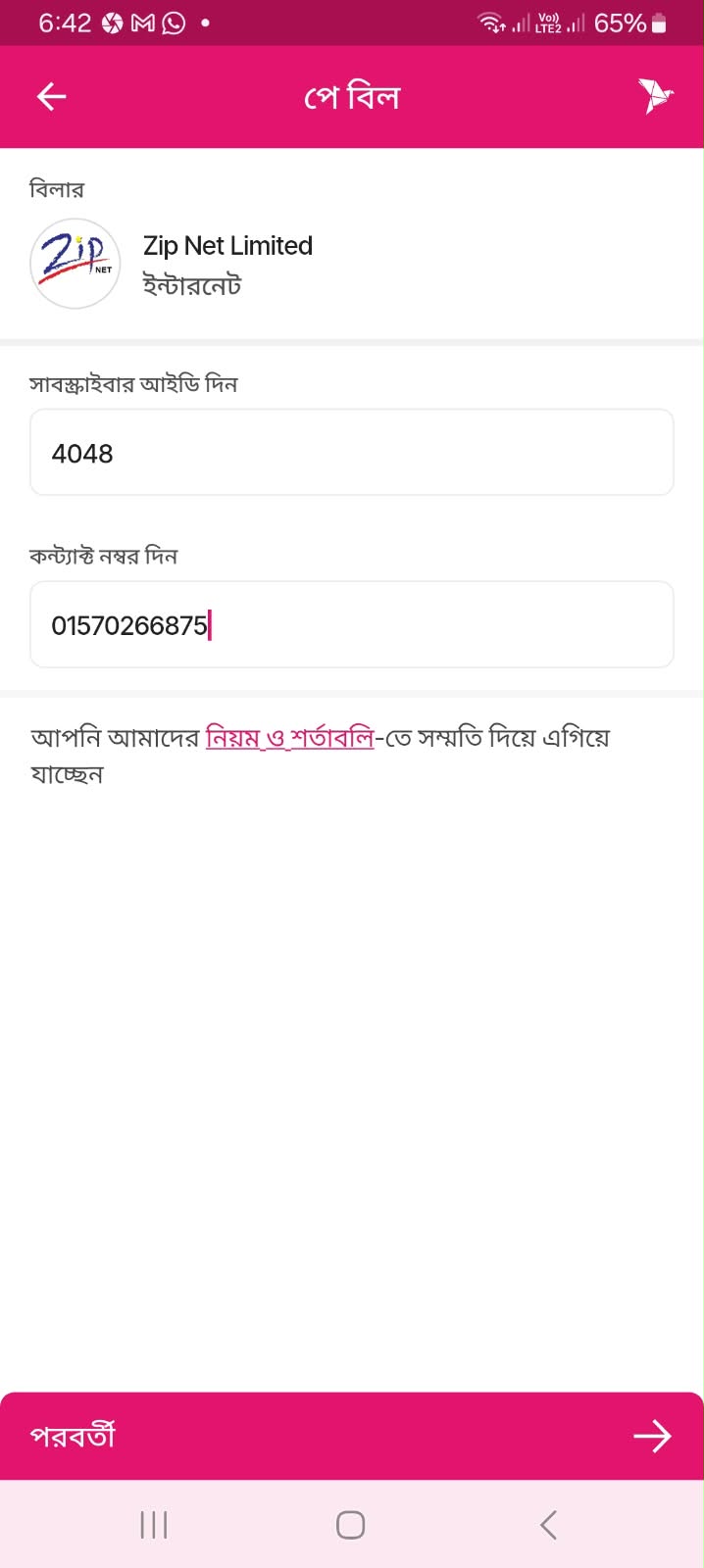
Enter Your Subscriber ID
Input your সাবস্ক্রাইবার আইডি (Subscriber ID) and contact number, then agree to the terms to continue.
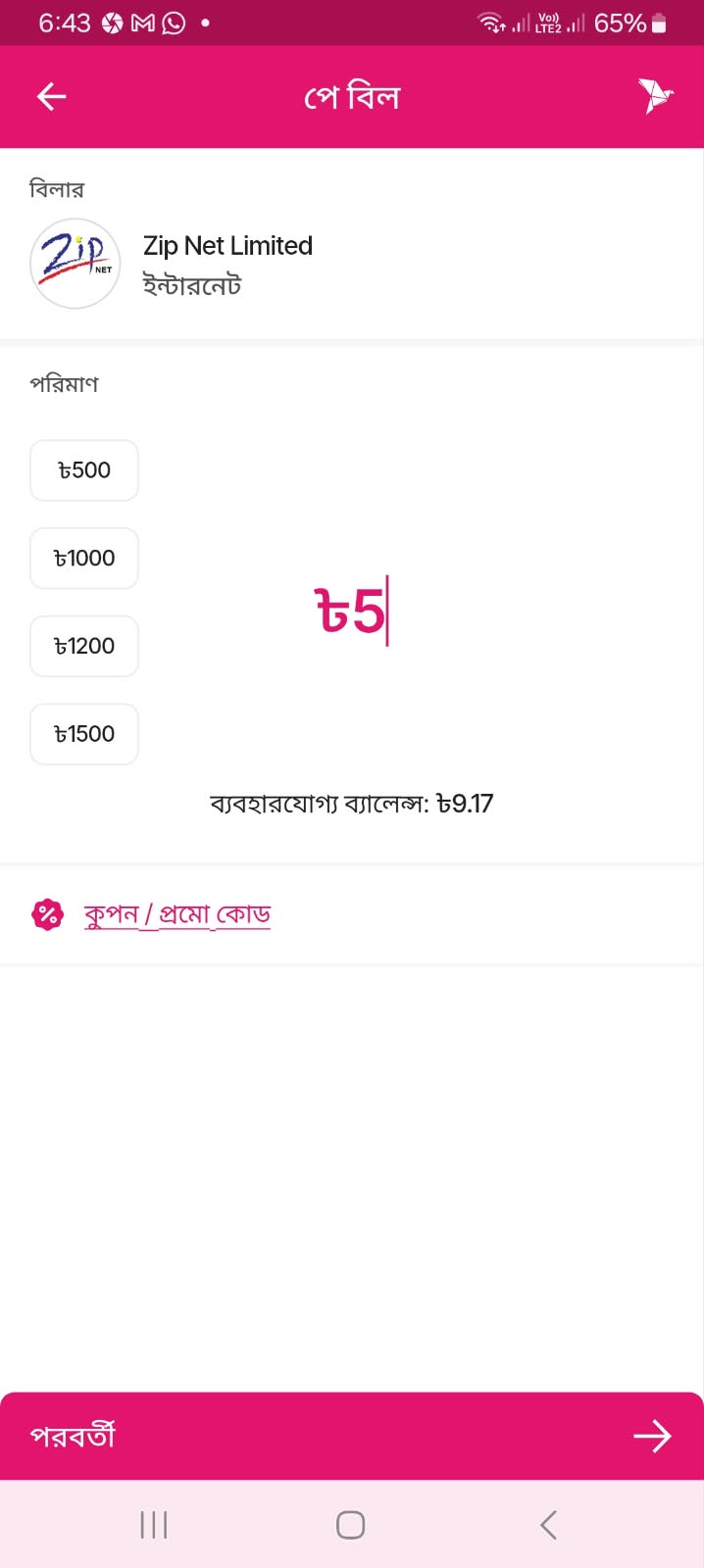
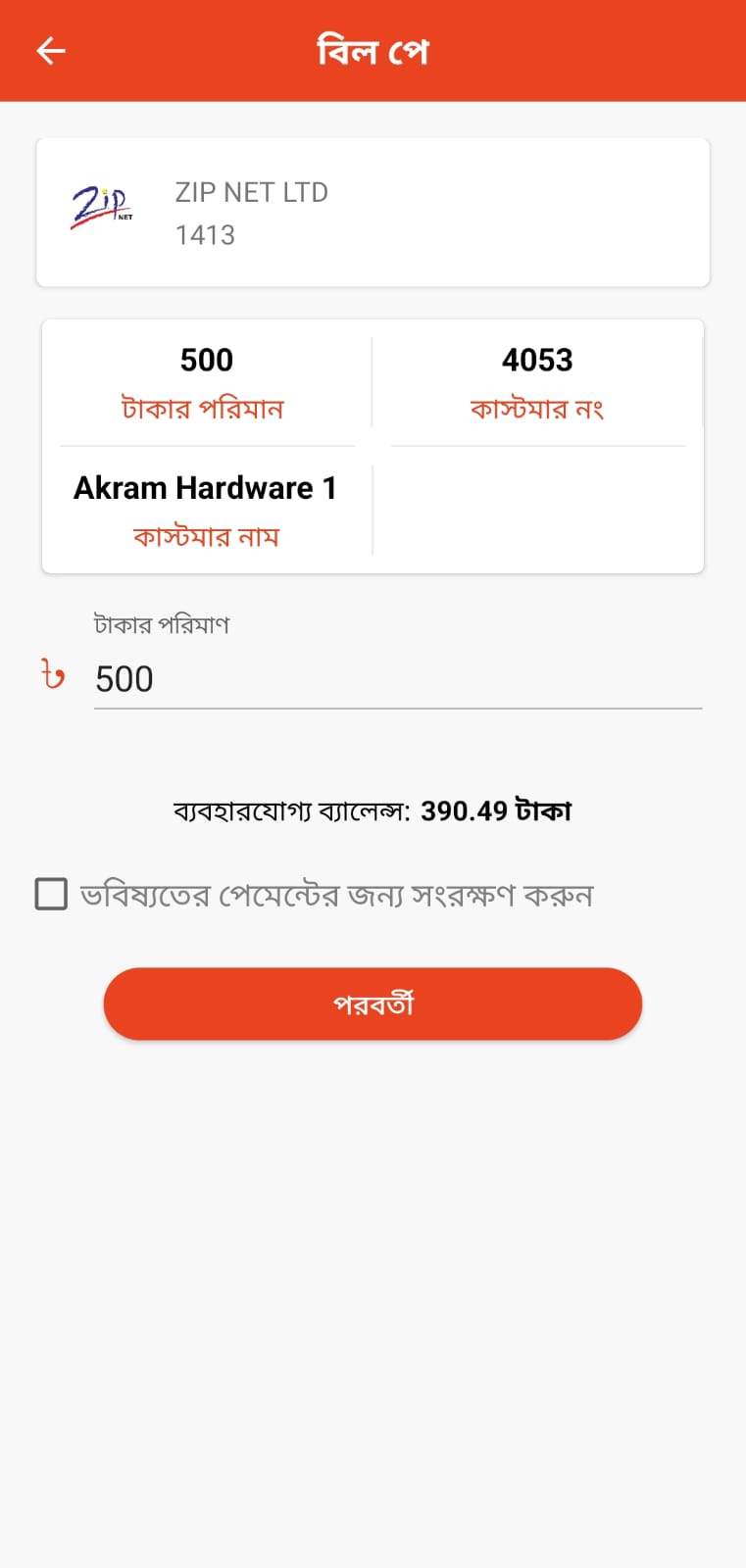
Enter the Amount
Type in your bill amount, or pick a preset value. Your available bKash balance is shown right below.
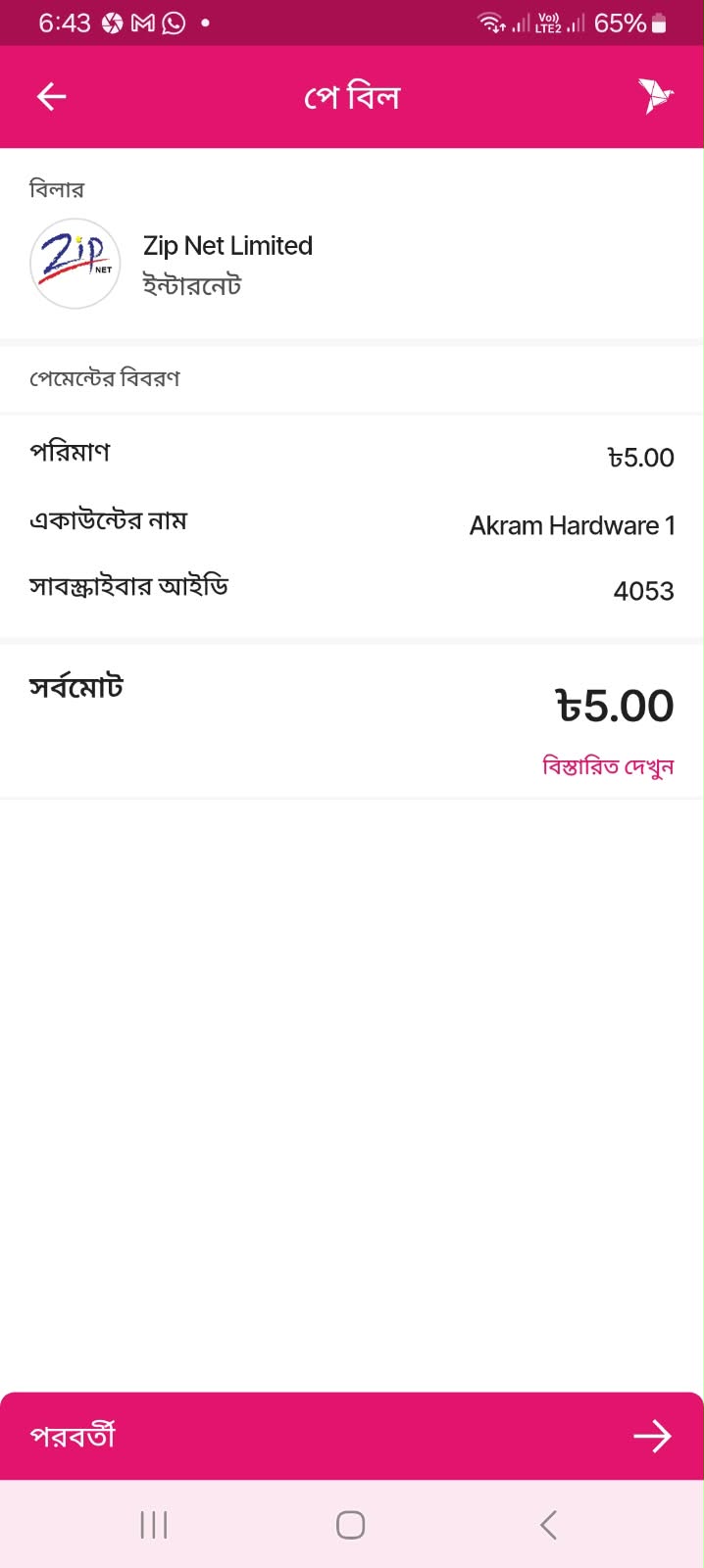
Review the Details
Double-check the account name, subscriber ID and total amount, then tap পরবর্তী (Next).
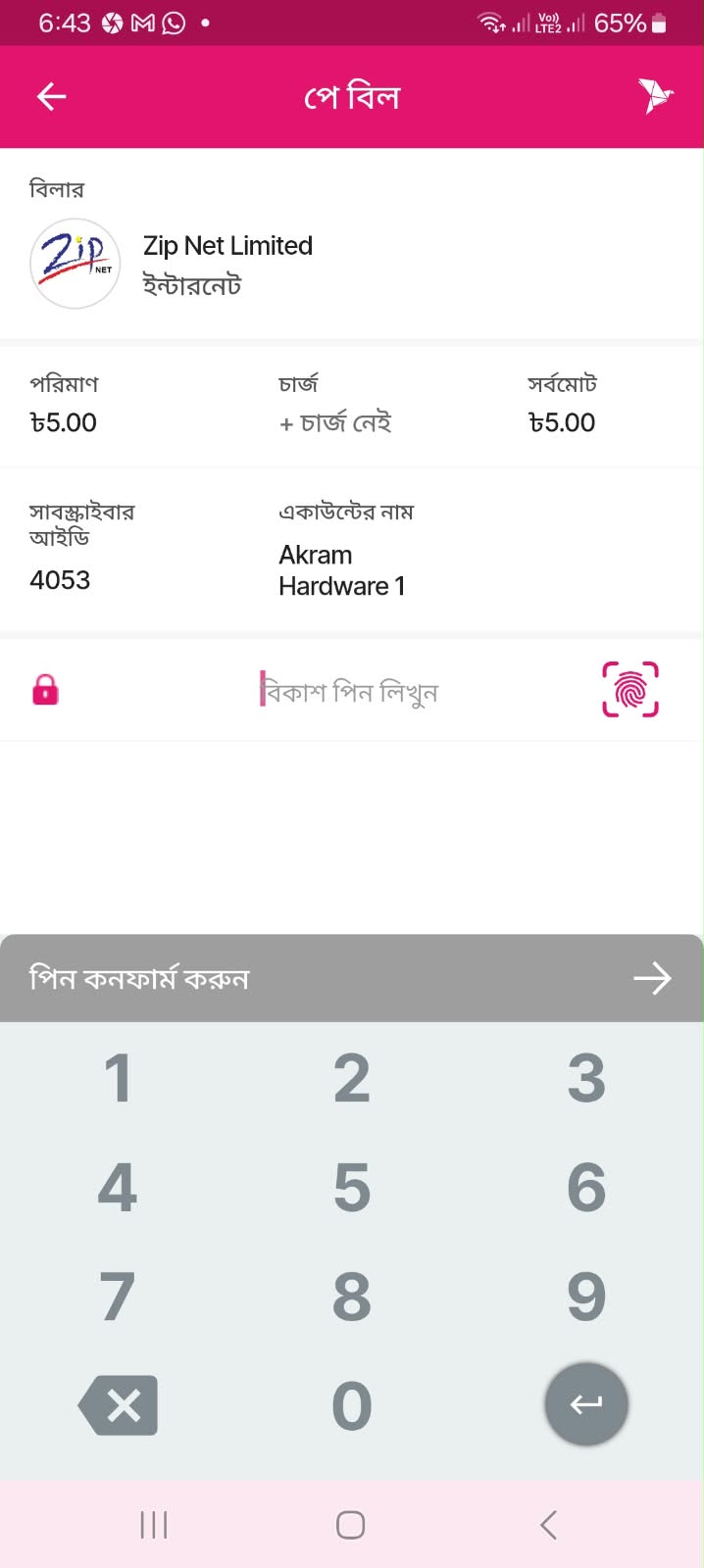
Enter Your bKash PIN
Confirm the transaction by entering your secure বিকাশ পিন (bKash PIN).
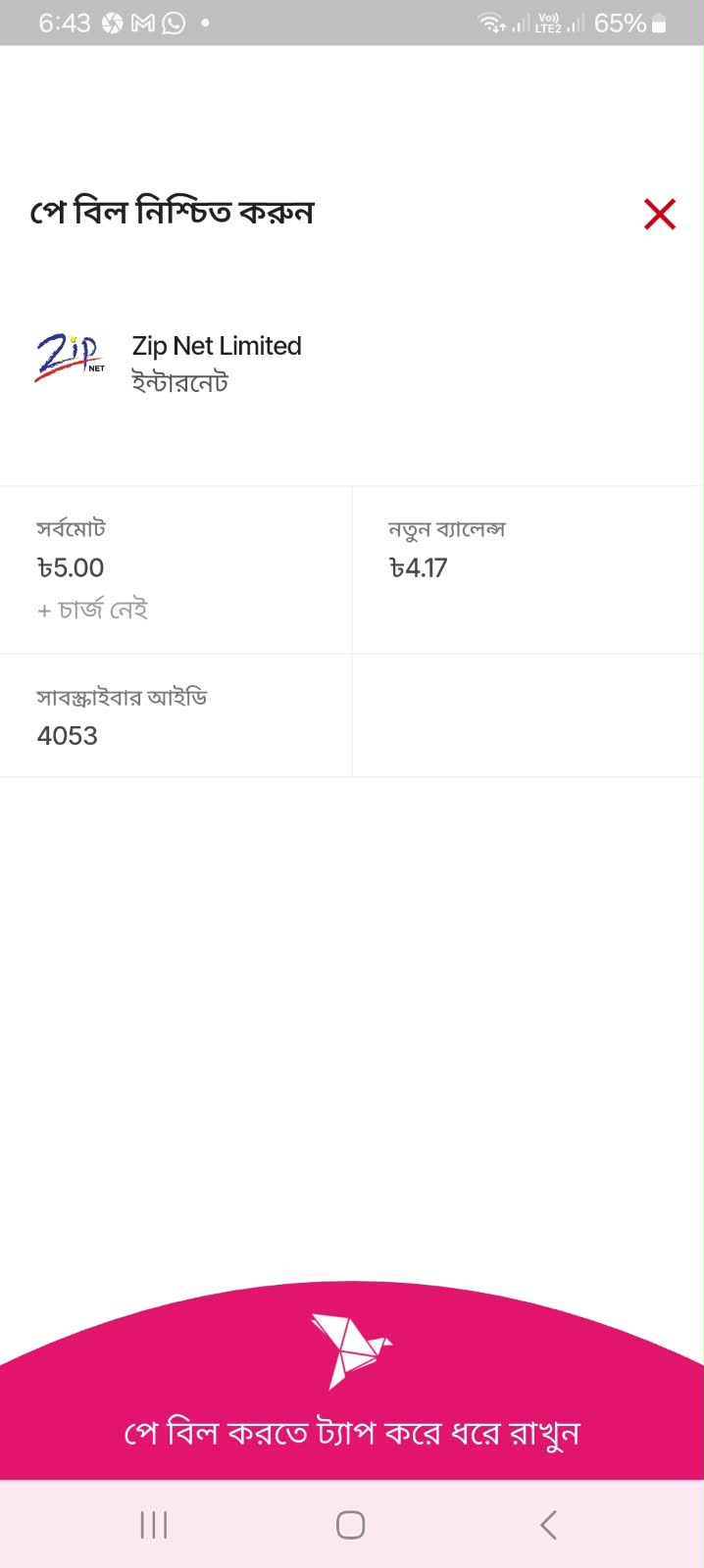
Tap & Hold to Confirm
Press and hold the button to complete your payment. That's it — your bill is paid instantly!
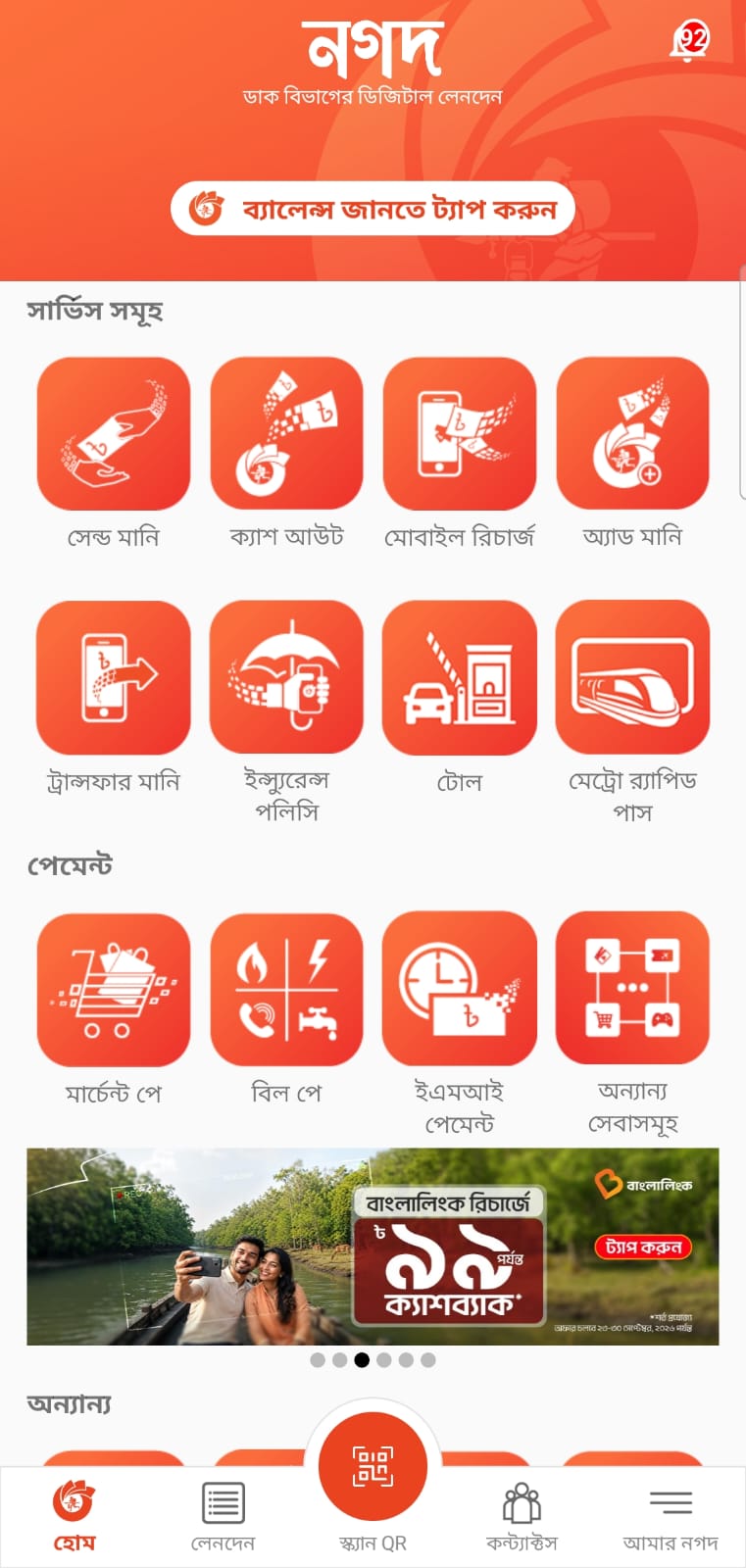
Open Nagad & Tap "Bill Pay"
Log into your Nagad app from the home screen and select Bill Pay from the main menu.
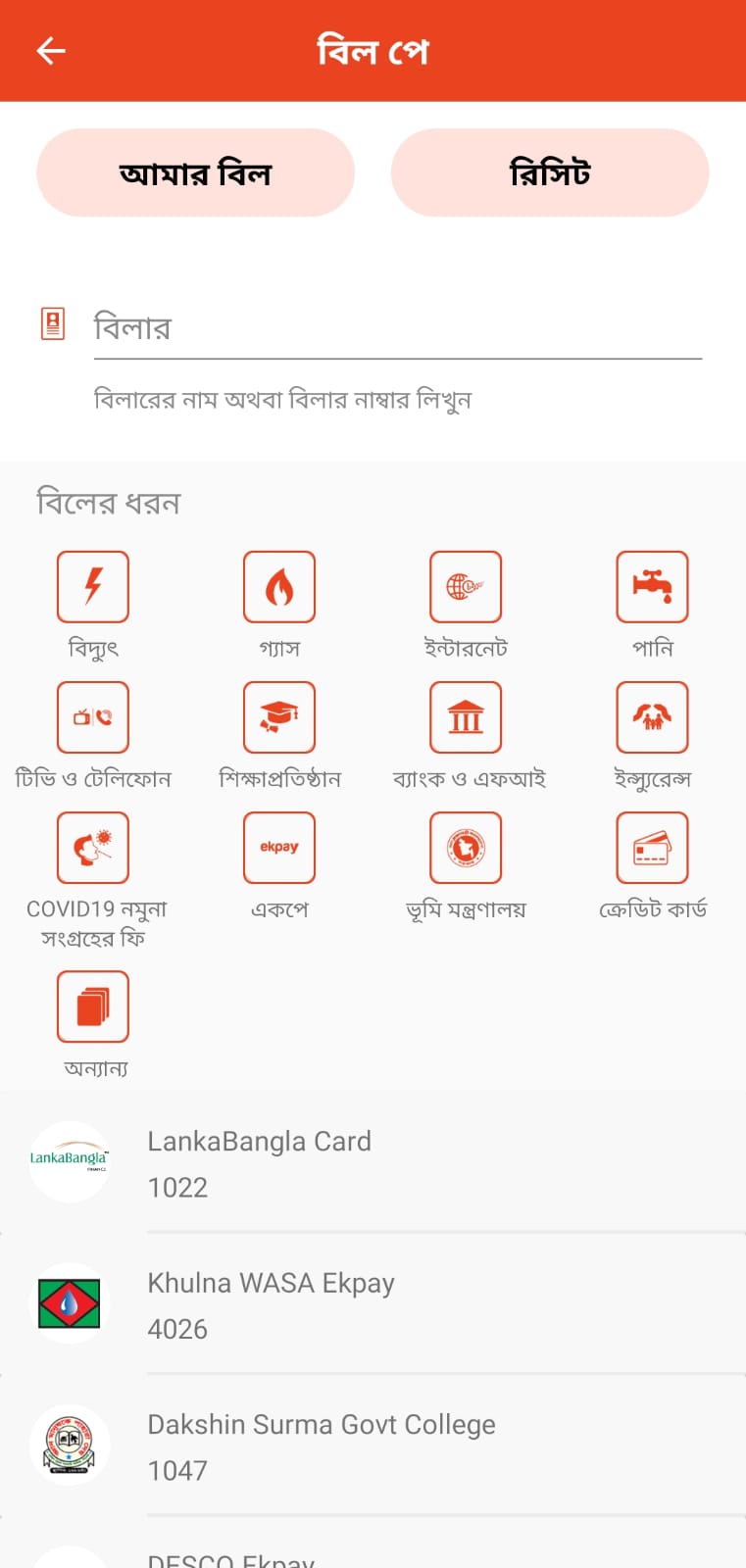
Select "Internet" Category
On the Bill Pay page, choose the Internet category, or simply search for your provider directly.
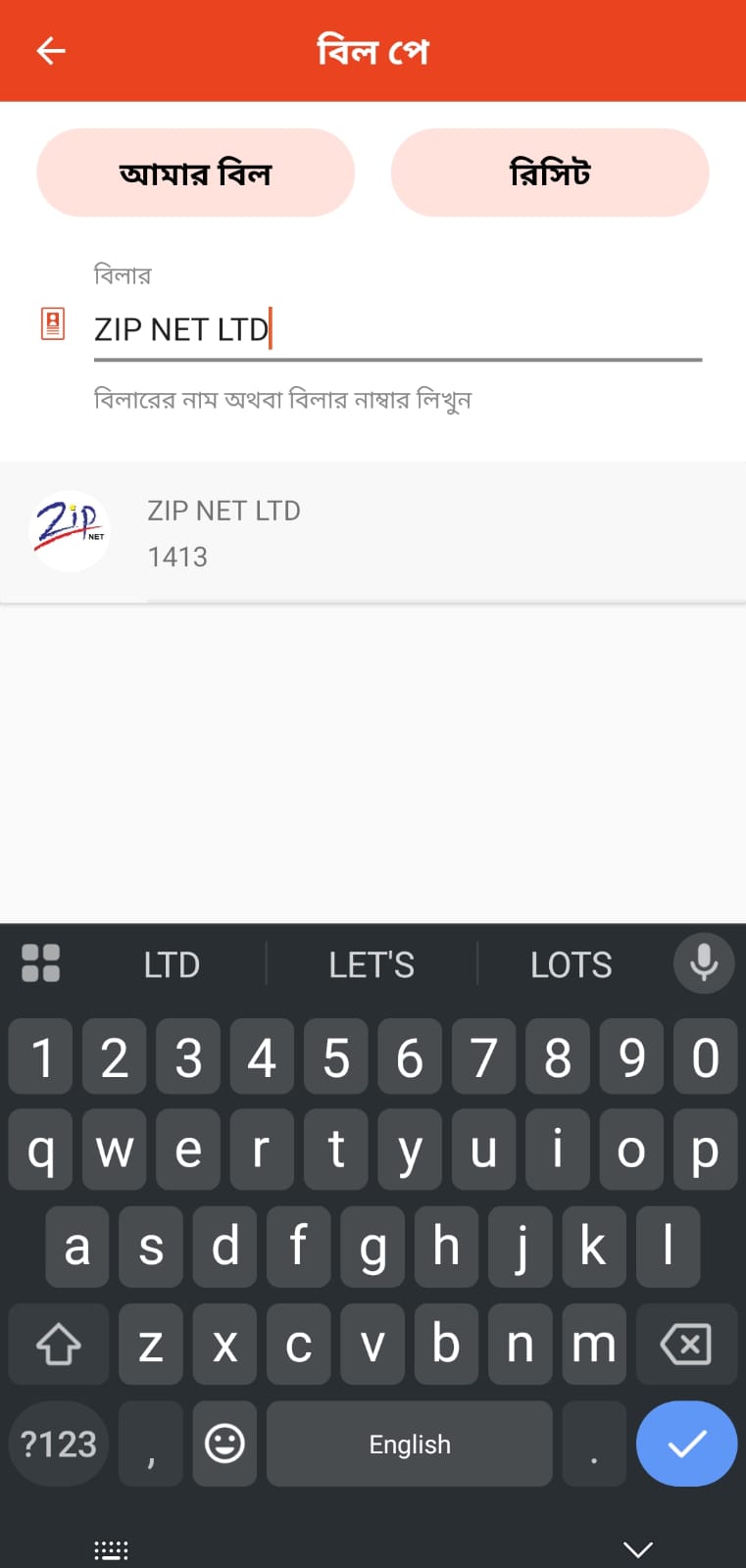
Search & Select "Zip Net Limited"
Type Zip Net Limited in the search box and tap on it from the results list.
Enter Your Subscriber ID
Input your Subscriber ID and contact number, then agree to the terms to continue.
Enter the Amount
Type in your bill amount, or pick a preset value. Your available Nagad balance is shown right below.
Review the Details
Double-check the account name, subscriber ID and total amount, then tap Next.
Enter Your Nagad PIN
Confirm the transaction by entering your secure Nagad PIN.
Tap "Confirm" to Finish
Tap the confirm button to complete your payment. That's it — your bill is paid instantly!
Pay with bKash by Dialing *247#
Works on any mobile phone — no app and no internet connection needed.
*247#Dial *247#
Open your phone's dialer and call the bKash USSD code.
Select “3” for Payment
Choose the Payment option from the bKash menu.
Enter Merchant Wallet number
Type the Zip Net Limited merchant bKash number.
Enter the Bill amount
Type the amount you want to pay.
Enter Subscriber ID as reference
Use your Zip Net Subscriber ID so we can match your payment.
Enter the counter number
Type 1 as the counter number.
Enter your secret PIN
Review the details, then enter your bKash PIN to confirm.
Receive confirmation message
You will get an SMS from bKash once the payment is successful.